In the modern globalized environment, it is important to maintain your network in a proper manner, particularly when you are hosting servers, playing games over the Internet, or with remote access programs. This is where a port checker United Kingdom tool is very helpful indeed. It enables the user to easily find out the open and closed ports on their network in seconds, thus leading to easy troubleshooting.
A common problem that many people have is poor connectivity caused by improper port settings, and unless they have the correct testing tools it may be frustrating to troubleshoot the problem. When you learn about port checking and its relation with port forwarding, you will be able to make sure that your network works much smoother and that it is under better control. This tutorial will assist you to troubleshoot common port forwarding problems within a short period of time.
What Is Port Forwarding?
Port forwarding is a method in networking that enables access to services in a local network that is private. It functions by redirecting the incoming internet traffic of a particular port to a particular device on your network, either a computer, a server or a gaming console. It is usually utilized to host game servers, provide access to a remote desktop or operate web applications. When your router or firewall blocks external connections, it is necessary to do port forwarding to allow those connections. Proper installation will offer the right data to the right device, enhance connections, and allow certain online functions to work effectively.
What Is a Port Checker Tool?
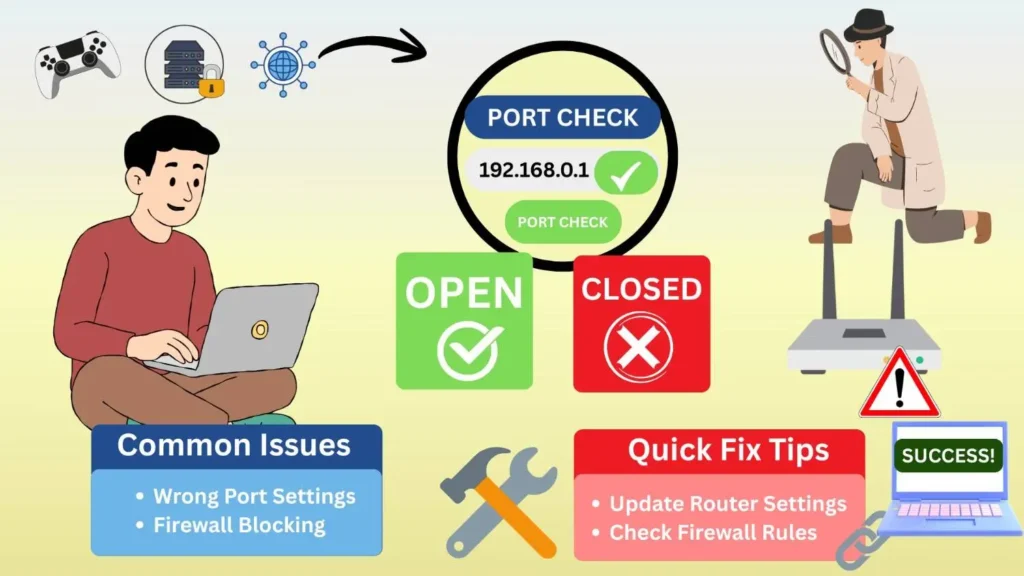
A port checker tool is a computer software application or an online tool that is used to check the status of a given network port (open, closed or filtered). It operates by connecting to your IP address on a specific port, which has been selected and examining the reply. This assists users to determine whether other services such as web servers, gaming servers or remote access tools are accessible over the internet. Port checker tools are typically utilized in the troubleshooting of connection problems, testing port forwarding configurations, and optimization of the general network setup and performance.
Why Port Forwarding Issues Occur
The problem of port forwarding is widespread, and it may block your applications, servers, or devices that are accessing the internet. By knowing the key reasons that lead to these issues, you can easily figure out and troubleshoot them without wasting time in troubleshooting.
- Incorrect IP Address
Port forwarding may be ruined by using a wrong local IP address. The router tends to provide devices with dynamic ip addresses and these can be changed with time. When the forwarding rule is directed to the old IP, it will not be received by the target device.
- Error Router Configuration.
Port forwarding is very sensitive to proper router configuration. Traffic can be blocked either by entering the wrong port number, or by using the wrong protocol such as TCP or UDP, or by inefficiently configured rules. The network services can break down due to minor errors in settings.
- Firewall Blocking Ports
Firewalls are an application of a security layer, but they may block legal connections. With proper port forwarding settings, a firewall on either your computer or router can still refuse to allow traffic and the port will look closed when it is tested.
- ISP Restrictions in the UK
The United Kingdom has internet service providers who occasionally block some ports to enhance security and curb abuse. This implies that ports that are correctly set can fail to open. These limitations usually cover ports that receive a hosting service, email services, or remote access services.
- Double NAT Issues
A double NAT occurs when two routers are placed in the same network defining two levels of address translation. This arrangement mixes the routing of incoming traffic and port forwarding will not be reliable or functional unless both routers are properly configured.
With these typical reasons, you will be able to diagnose problems with port forwarding much faster. By fixing them one by one, you make sure that you achieve a higher level of connectivity, seamless performance, and are able to successfully access your services without trying to complicate things when you are outside of your local network.
Step-by-Step: Fix Port Forwarding Issues Quickly
Port forwarding problems might appear to be complex, however, a systematic step-by-step procedure would be a success. The steps solve a common issue one at a time and you can more easily get your network services working correctly without any unwarranted trial and error.
Step 1: Check Your Public IP
First, determine your public IP address. This is what your network communicates with the internet. It can be located through your router settings or on the internet. With the right public IP, the traffic that gets into your network will get there in the right way.
Step 2: Assign a Static Local IP
Give the device which needs port forwarding a fixed local IP. This will allow you to avoid changing the IP of your device to a dynamic IP assignment and keep port forwarding rules consistent in the direction of the proper device in your network.
Step 3: Enable Router Port Forwarding.
Get into the settings of your router and port forwarding settings. Type the appropriate port number, choose the appropriate protocol (TCP/UDP) and connect it with the static local IP of your device. You need to save the settings in order to implement the rules.
Step 4: Permit Port through Firewall.
Make sure both your computer and router firewalls are open to allow passage through the port that was forwarded. A port exception enables outgoing traffic to pass through the firewall, and it is essential to make it look like an open port.
Step 5: Reboot Router and Device.
Reboot your router and your port forwarded device. This reconfigures network environments and makes the port forwarding policies effective and removes any temporary conflicts that may hinder connectivity.
Step 6: Test With Port Checker United Kingdom.
Finally, check the port with a port checker United Kingdom tool to ensure that the port is open. This ensures that your setup is functional and assists in determining the remaining problems that should be fixed.
These are the steps that you should follow to fix port forwarding problems in a short time. Once you have the right IP, you have the correct router program, you have the changes you made to the firewall and you have tested it, your network will work flawlessly and services will be available to the web.
Common Ports You May Need to Open
There are applications and services that need certain ports to be open. Being aware of the ports to open may enable you to avoid connectivity errors, smooth communication and boost performance of gaming, servers, and remote access tools.
- HTTP (Port 80)
- HTTPS (Port 443)
- FTP (Port 21)
- SSH (Port 22)
- RDP (Port 3389)
- Minecraft Server (Port 25565)
- SMTP (Port 25)
- POP3 (Port 110)
- IMAP (Port 143)
By opening the right ports you will be able to communicate with the internet without errors with your devices and applications. Always ensure that you verify the ports that your services require and make sure that you configure them appropriately to ensure that they are not only easily accessible, but also secure on the network.
Conclusion
Port forwarding is the key to allowing external access to your devices, servers, and applications, and yet they may not work properly when incorrect settings are used or blocked. A step-by-step method of checking the IPs, assigning fixed addresses, configuring routers, and testing with a port checker United Kingdom tool will aid in fast problem-solving.
Always consider security by only opening ports where necessary as well as the use of a firewall and ensuring that your devices are updated. These steps and best practices will help to ensure a smooth connection and secure access to your services and a safer and more efficient network environment, both personally and professionally.
FAQ’s
Q1. What is a port checker United Kingdom tool
A port checker United Kingdom tool is an online application that helps in checking if the particular ports in your network are open or closed or blocked. It is useful in troubleshooting connection problems and checking the port forwarding configurations.
Q2. Why are my ports closed even after port forwarding?
Ports may be closed through wrong IP addresses, router misconfiguration, firewall configuration, ISP blocking or double NAT configurations. Verifying all these factors normally fixes the problem.
Q3. Is it safe to open ports on my router?
Yes, there is no harm in opening required ports, but cautiously. It is only necessary to open required ports, have strong passwords, have firewalls enabled, and ensure that the firmware is up to date to secure it.
Q4. How do I test if port forwarding is working?
You can use a port checker United Kingdom device to check your forwarded ports. Enter the port wide variety and your public IP to confirm if the port is open and accessible.
Q5. Can my ISP block ports in the UK?
Yes, a few UK ISPs block sure ports for protection or coverage reasons. Contacting your ISP or the use of opportunity ports can assist pass those regulations safely.